FAQ for Ellisys
1. How to judge the signal quality of air interface packets? How to improve the quality of captured packets?
Click on the packet you want to check, in the Details window on the right side, Link-Layer Information, you can see Sniffer Radio–>RSSI.
RSSI of -30dBm~-70dBm should be the ideal signal strength, and the air packets under this strength are less prone to false packets and missed packets.
Sniffer Radio–>RF Gain is the Bluetooth Radio gain set in Record–>Wireless interface.
Adjust the gain according to the RSSI strength to make the packet grabber reach the optimal working signal strength.
2. When I capture packets, I can only capture a small portion of the packet, and the packet capture device and software are running normally, but there are no more packets after that, what’s wrong?
Maybe the packet capture software is not configured to capture 2M PHY null packets, please refer to Getting Started–>Packet Capture Configuration section, Wireless Interface Configuration.
Maybe the Master device has an abnormality during the connection process and does not continue to send packets, resulting in an abnormal connection. Observe the program to see if there is any connection timeout or other errors reported.
Maybe it is caused by the filtering policy, try to cancel the filtering policy and see if there are any packets you need among all the empty packets.
3. I can only catch classic broadcasts, but not extended broadcasts, what’s wrong?
Please update the packet capture software Ellisys Bluetooth Analyzer to the latest version.
Please refer to Getting Started–>Packet Capture Configuration section, Wireless Interface Configuration, check the box of Bluetooth 5 Low Energy Advertising Extension.
4. The program is running and I can see the broadcast packets on the packet grabber, but I can’t scan the device through the cell phone tool or the probability of connecting to the device is very low after I found the device, what’s the problem?
It may be caused by the weak RF signal of the device, please place the packet grabber in the same position as the cell phone to grab packets, and observe whether the RSSI of the captured air packets is at the ideal signal strength. Please place the packet grabber at the same position as the cell phone to grab packets, and observe whether the RSSI of the captured air packets is at the desired signal strength.
Maybe the device clock is not allowed, resulting in RF performance problems, try to check whether the device XO is calibrated.
As a professional packet grabber, the RF performance of packet grabber is much better than that of cell phone, if the signal is weak or the signal quality is poor, the packet grabber can grab it normally in most cases.
5. How does a packet grabber pull signals from a program while grabbing empty packets?
Find the Logic or Logic Analyzer interface of the packet grabber and connect the signal number. On the other side, connect the corresponding IO port of the device.
Refer to the Packet Grabber Configuration section, Wired Interface –> Logic Transitions and inputs.
6. Why some encrypted packets can be decrypted while others cannot?
According to the Bluetooth protocol, the packet capturing software can decrypt the encrypted packets automatically only if the packets are captured by Just Works in LE Legacy Pairing method and the whole pairing process is completed during the initial pairing stage.
All other decrypted packets can only be decrypted successfully if the key is known.
Select encrypted air packets, in the main interface chapter, Mesh click View–>Mesh Security, other air packets click View–>Security, fill in the key according to the prompts can be decrypted.
If you fill in the key correctly, the bottom color of the key will become green, and the empty port ciphertext packet will become plaintext packet. Otherwise, the color will be red, and the contents of the empty packet will remain unchanged.
7. What is the problem that the packet grabber is running very slow?
Ellisys Bluetooth Analyzer is updated very fast, there may be bugs in the middle version, try to update the version and it will be solved.
How to update: Click Help–>Download offline installer in the main interface to download the latest version.
8. After a long time of packet capturing, the packet capturing software is very laggy and fills up our system disk, what should I do?
Before saving, the packets captured by the packet grabber are cached in the system disk. If there are many Bluetooth devices around, the packet grabber may grab a lot of data in a short period of time, resulting in a large amount of system disk space. At this time, you just need to stop capturing packets and close the packet capturing software, then the cache will be released, and the system disk space will be freed up.
Please note that closing the packet grabber will not automatically save the current packets.
Therefore, before you capture packets for a long time, in order to avoid the data of a single packet being too large, and also to avoid the computer lagging due to excessive memory usage, please make sure to set up the automatic saving of packet capture files in advance.
Please refer to Getting Started–>Capture Configuration–>Capture Management Interface section for details.
9. How to check the current broadcast period or connection period by empty packets, so as to check that our code is configured as expected?
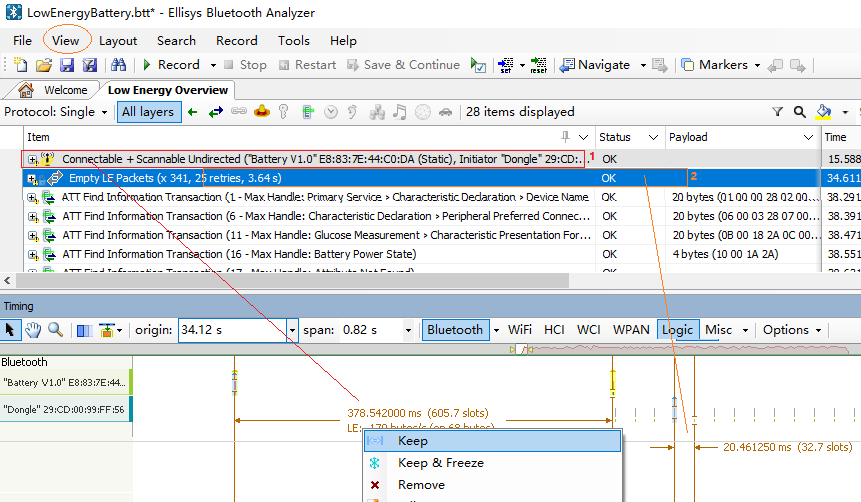
Open the main interface, click View–>Timing to open the Timing interface.
Click to select the empty packet in Low Energy Overview interface.
In the Timing screen, hold down the left mouse button and pull left and right to bring up the timing lines.
Align it to the interval you want to measure.
You can click Keep in the right drop-down menu to keep the current measurement line and continue to measure other time intervals.
As shown in the following example, if you click on Broadcast Packet 1 in the Low Energy Overview screen, the measured broadcast period is about 378ms, and if you click on Connection Packet 2 in the Low Energy Overview screen, the measured connection period is 20ms.
Click to select Packet 2 on the Low Energy Overview screen and measure the connection period to be 20ms.
10. I want to make sure that my broadcast data is set up correctly, or I want to make sure that the connection data is sent out, where should I look at the sent out air port data?
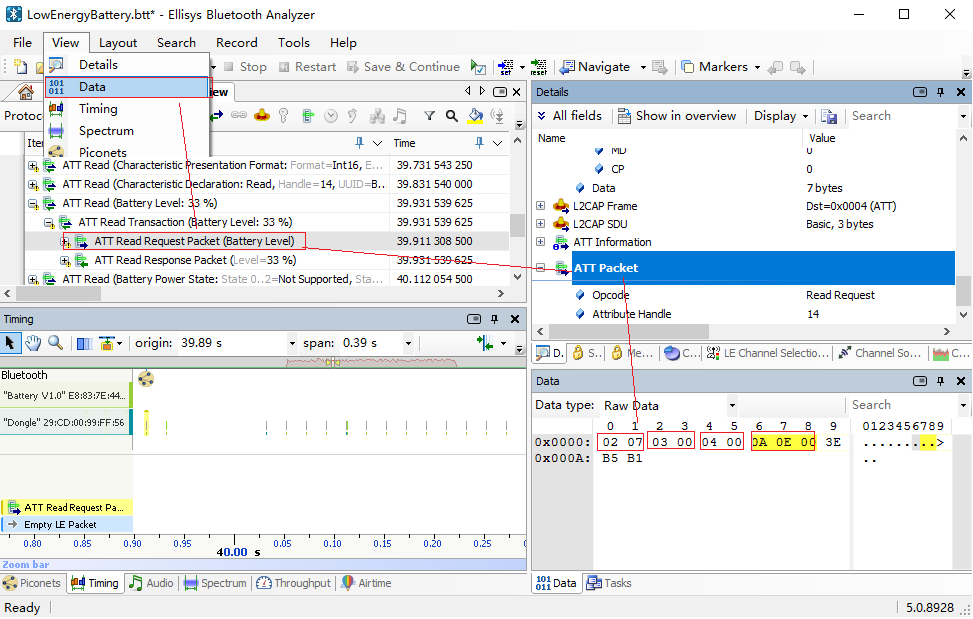
On the main screen, click View–>Data to open the Data screen and view the raw data.
Click View–>Data in the main interface to open the Data interface to view the raw data. Select the packet you want to view in the Low Energy Overview interface, and then you can see the raw data in the Data interface.
Note: The encrypted data needs to be decrypted successfully before it can be compared with the actual data you sent through the plaintext data. The default display is ciphertext raw data before revealing.
Broadcast and connection data viewed in the same way, the following figure to view the connection data as an example:
02 07 is the LL layer packet header;
03 00 is the ATT data length;
04 00 is the ATT data channel;
0A 0E 00 is the ATT data;
3E B5 B1 is the data CRC check bit.