Ellisys User Guide
[TOC]
1. Important Note
Ellisys packet grabber is a valuable equipment, the value of a 15W~50W range, replacement and maintenance costs are high, and the repair needs to be sent back to the original Swiss factory for repair, which takes a long time. In order to avoid disputes, please remember to use the device in a standardized way to avoid power failure, falling and other abnormalities.
2. Preface
Ellisys Bluetooth Analyzer is a packet grabbing tool that needs to be used together with Ellisys Bluetooth Analyzer.
Classic Bluetooth packet capture requires packet capturing hardware support, the software is still consistent. As our main business is BLE, solid this document mainly to BLE packet capture as an example.
The latest version of the software download address https://www.ellisys.com/better_analysis/bta_latest.htm
The software will be updated synchronously according to the protocol update, so it is recommended to keep using the latest version as much as possible.
This document is only a brief explanation of how to start quickly and typical problems in the process of using the software. For comprehensive and detailed instructions, please refer to the official user guide document in the installation directory of the software: install_patch\Ellisys\Ellisys Bluetooth Analyzer\Documentation\Ellisys Bluetooth Analyzer User Manual.pdf
3. About the hardware
The ellisys packet grabbers we use come in three main models, as shown below from left to right: Vanguard, Explorer, Tracker.
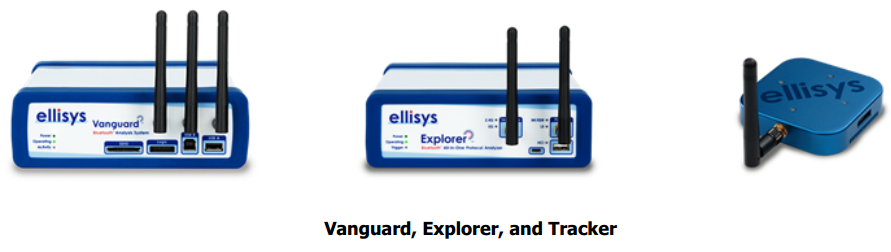
Both Vanguard and Explorer must be powered externally by a dedicated power adapter, and the USB cable is for data transfer only. Both packet grabbers can be used to grab Bluetooth dual-mode over-the-air packets.
The Tracker can be powered using the USB connection cable, i.e. USB can be used for both data transfer and power supply. Laptop USB ports may also be underpowered, so you may need to plug the laptop into a power source or try a different computer.
Bluetooth packet grabber data transmission volume is large, please try to use high-quality USB cable, to avoid insufficient power supply or packet grabbing abnormal interruptions.
All packet grabbers need an external antenna, please make sure the antenna is functioning properly and has been screwed tightly.
4. Getting Started
4.1 Main Interface
Open Ellisys Bluetooth Analyzer as below.
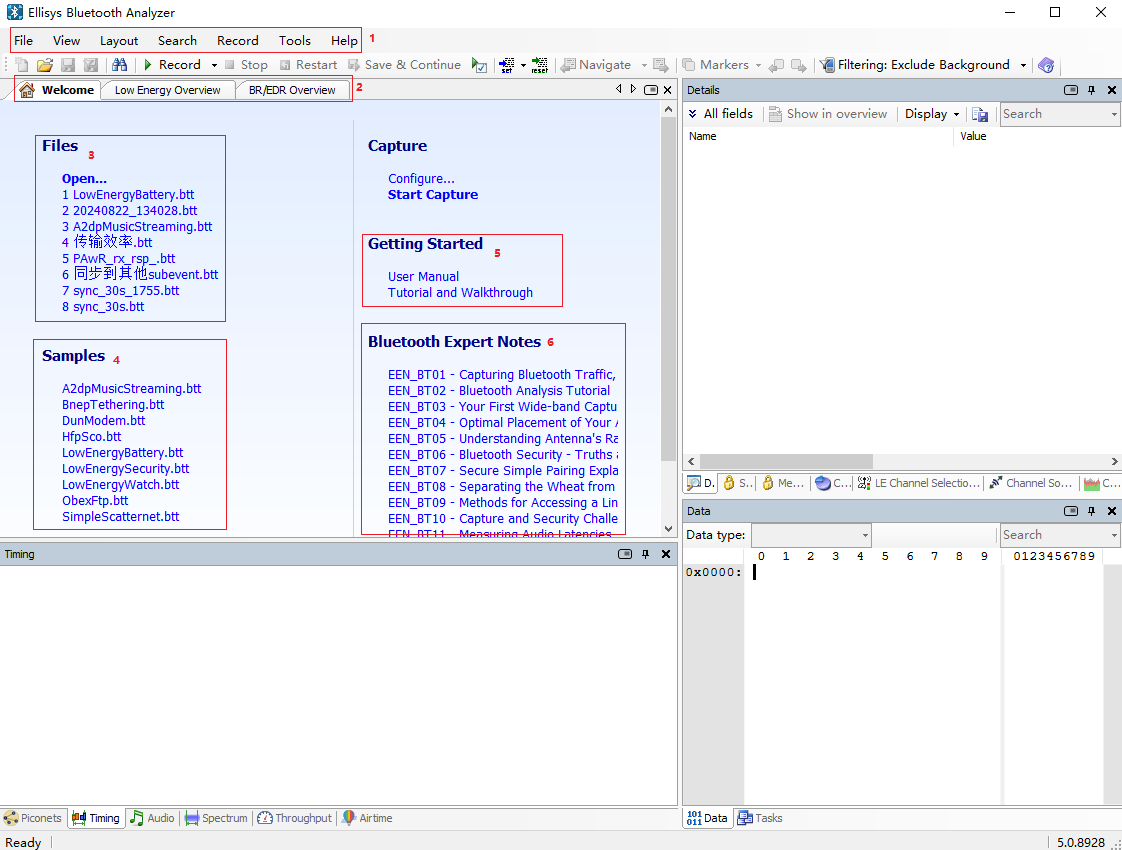
1~5 Function Introduction:
software configuration:
File: Open the history capture file. You can also double-click the .btt file to open it directly.
View: open/close the small window of various functions of packet capture.
Record: capture a variety of parameter configuration. This entry is the most commonly used.
Help: open the user guide document, download the latest software version, view the current software version information.
window selection:
Welcome: the default interface.
Low Energy Overview: BLE packet capture is in this interface.
BR/EDR Overview: BT capture packets are in this interface. 3.
Historical Packet Files: Quickly open the recently opened packet files. 4.
Native packet capture file, which exists by default after the software is installed and is used to demonstrate the packet capture style. LowEnergyXXXX.btt is the BLE capture file. 5.
User Manual, which is the official user guide document. 6.
some other official documents.
4.2 Quick Start
This section describes how to quickly start capturing packets sequentially.
Open Ellisys Bluetooth Analyzer software. 2.
Connect the packet grabber to the power supply, connect the USB to the packet grabber and the computer, and wait for half a minute for the device to initialize; the initialization of the Vanguard device may take 1-2 minutes. 3.
Click Record to start capturing packets, and the interface will automatically jump to the packet capturing display interface; for BLE devices, it will jump to Low Energy Overview, and for dual-mode devices, it will jump to BR/EDR Overview. 4. After a short initialization period, the device will be connected to the power supply of the packet capturing device.
After a short initialization, the device starts to capture packets. At this time, the Record button is grayed out, and the Stop and Restart buttons next to it become clickable.
The Low Energy Overview interface lists the captured empty port signals and parses them out automatically.
When the capture is finished, click Stop to stop the capture.
After stopping the capture, the captured data is still in the cache and is not saved. To save the data, you need to click the Save button or click Save in the popup box when you close the interface. 8.
If the data is not good, you can tap Restart to clear the current data and restart the packet capture. Please note that restart operation will not save any data. 9.
In the case of more Bluetooth data around, the packet capture data may accumulate very quickly. Capturing packets for a long time will not only take up a lot of system hard disk space, but also may not be easy to move because of the large size of the capture file. Therefore, if you need to capture packets for a long time, please make sure to set up the auto-save location and size of the captured packets, see Auto-save Configuration under Capture Management interface in the following section.
The above process involves several buttons as shown below:

4.3 Packet Catching Configuration
Usually, we can just quickly start and catch the desired air port packets. However, there are cases where we may need some simple configurations to make our packet capture more accurate.
These configurations usually can’t take effect during the packet capture process, so please do the configuration operation before clicking Record.
The following figure opens the packet capture configuration interface:
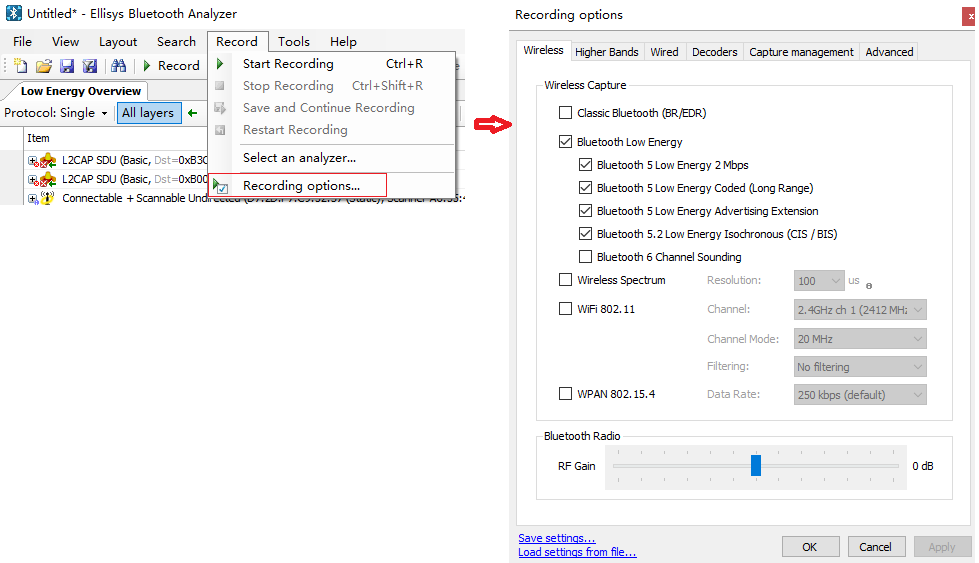
The following are common configuration operations:
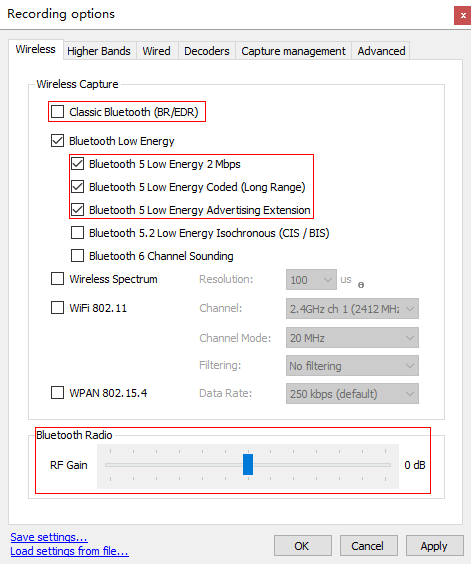
Wireless interface:
Classic Bluetooth (BR/EDR) : Configured to catch classic Bluetooth air packets (hardware support required).
Bluetooth Low Energy : Configured to capture BLE packets. The following three options are usually all checked.
Bluetooth 5 Low Energy 2 Mbps : Support to capture 2 M PHY packets.
Bluetooth 5 Low Energy Coded (long range) : Support to capture Coded PHY packets.
Bluetooth 5 Low Energy Advertising Extension : Support to capture extended broadcast.
Bluetooth Radio: Adjust the antenna gain. The air port signal is not the higher the better, you need to adjust the gain value, so that the air port signal is at the right strength to achieve the best results.
RF Gain: Default is 0 dB, positive number is to increase the gain, used when the target signal is far away and the signal is weak. Negative number is to decrease the gain, which is used when the target distance is too close and the signal is too strong.
Wired interface:
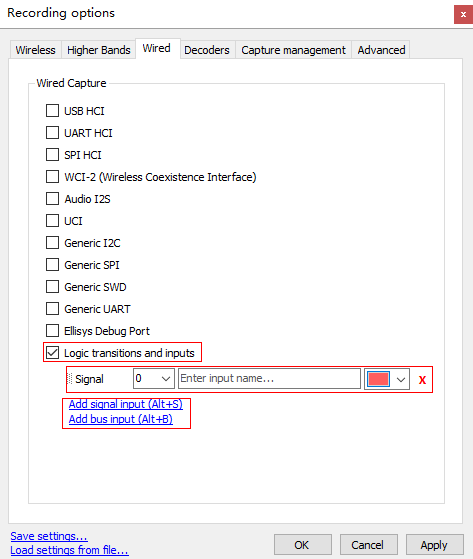
Logic Transitions and inputs: There are some problems involving timing, you may need to pull the chip signal line, together with the air port packet to observe the timing and analyze the problem.
Add signal input (Alt+S) : Add a signal analysis line
Add bus input (Alt+B): Add a set of signal analyzing lines, multiple signal lines are used to represent multiple states or numbers.
Please refer to the official user’s guide document, section “24. Flying Leads Probe - Explorer” and section “25. - Tracker and Vanguard”.
Capture Management interface: Automatically save relevant settings.
Capture storage: Capture automatically save the location and naming rules.
Automatic Segmentation: For long time packet capture, please make sure to set automatic segmentation to save the packet, so that only the segmented packet will be kept after the problem is found.

Save configurations and read configurations:
Save settings: You can save the current configuration locally by using the button at the bottom of the configuration screen.
Load Setting from file: Click to restore the saved configuration, which can be used when you need to configure fast recovery or reinstall the software.
4.4 Only lip packet filtering
With the popularity of the current Bluetooth technology, we live and work, many devices with Bluetooth functionality, resulting in the capture of packets, we may capture many of our unwanted null packets, these packets will cause some interference in our analysis of the problem, affecting the efficiency of our analysis of the problem.
To deal with this situation, we can filter the empty port packets by simple configuration.
The following ways can be done at any moment before the capture starts, while the capture is in progress, and after the capture stops. Either of the two ways can be selected:
Choose according to the device address:
Click Filtering : Exclude Background–> configure on the upper right side of the packet capture interface to enter the device selection interface. 2.
In the Device Database area, find your device address. You can enter the device address or name in the Search box to quickly search for it. 3.
Double-click the target address to see it added to the Traffic Filtering Criteria. 4.
If you add only one address, it will filter out the air packets sent from and to this address. If you add more than one address, only the packets sent from those addresses will be filtered.
Click Apply to take effect, and then you can see that the broadcast air packets have been filtered in the Low Energy Overview window.
The schematic is shown below.
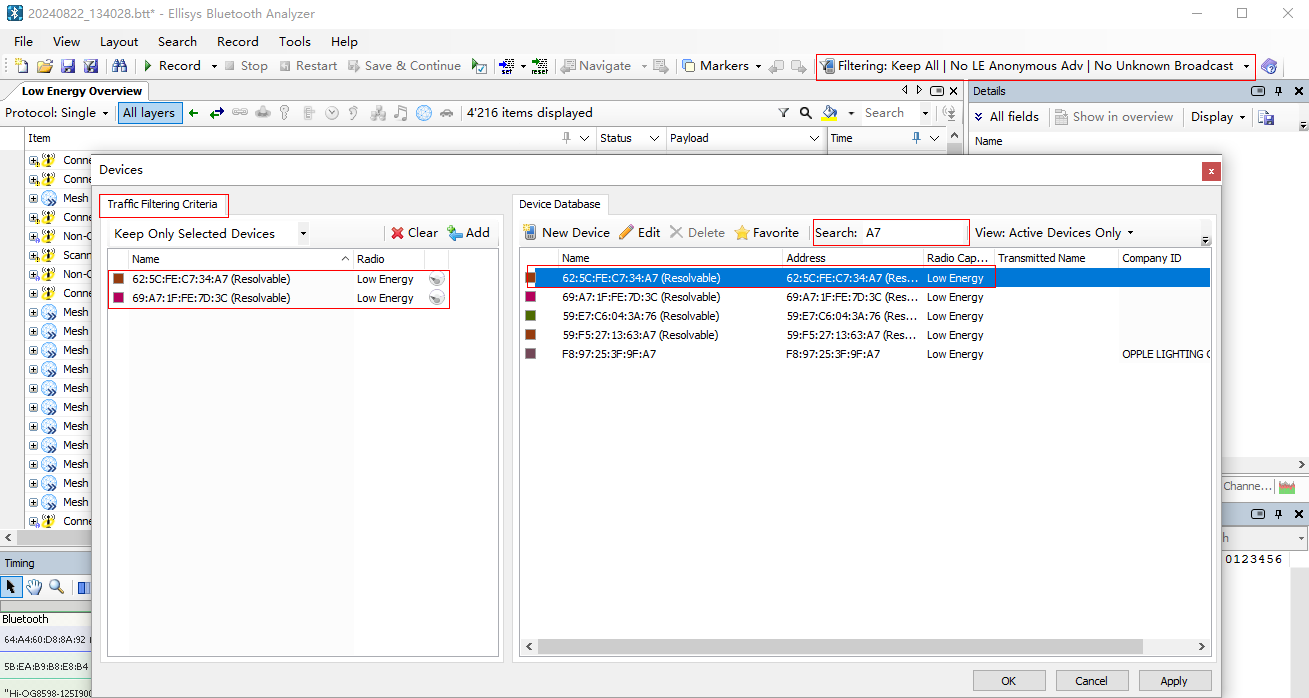
To select filtering based on air packets
Switch to the Null Packets screen.
Select the empty packet you want to filter out and right-click to select it.
Right-click to bring up a pop-up menu, the top three options are filter by protocol, and the next three options are filter by device. 4.
In the following figure, select the ATT air packets during the connection of two devices, and click the right drop-down menu to select.
